
How to Convert a WordPerfect Document to MS Word Doc: 4 Ways
Th5
Some files age gracefully. Others arrive in your inbox like a tiny digital fossil. A WordPerfect document, usually ending in .wpd, is one of those files that can make a modern Microsoft Word user pause and whisper, “What decade is this from?” The good news is that converting a WordPerfect document to an MS Word document is usually much easier than it looks. You do not need a time machine, a law-office IT department from 1998, or a drawer full of floppy disks. You just need the right method for the file you have.
WordPerfect was once a major word processing program, and it is still used in some legal, government, academic, and archival environments. Microsoft Word, meanwhile, became the everyday standard for business documents, resumes, contracts, school reports, and almost everything else that needs to be opened without a small ceremony. That is why many people eventually need to convert a WordPerfect file into a Word format such as .doc or .docx.
This guide explains four practical ways to convert a WordPerfect document to MS Word Doc format. We will cover Microsoft Word, WordPerfect itself, LibreOffice, and online conversion tools. You will also learn what to check after conversion, how to avoid formatting disasters, and why old files sometimes behave like they have opinions.
What Is a WordPerfect Document?
A WordPerfect document is most commonly saved with the .wpd file extension. It may contain text, formatting, tables, footnotes, headers, page numbering, legal pleading layouts, embedded objects, and other document elements. Older WordPerfect files may use slightly different internal structures depending on the version that created them, which is one reason conversion quality can vary.
In simple terms, a .wpd file is not “broken” just because Word does not immediately open it perfectly. It is simply written in a format designed for WordPerfect, not Microsoft Word. Conversion is the process of translating that structure into a Word-friendly format such as .doc or .docx.
Before You Convert: Make a Backup First
Before trying any conversion method, make a copy of the original .wpd file. Right-click the file, choose copy, and paste it into a safe folder. Rename the copy something obvious, such as contract-original-backup.wpd. This small step can save you from a very large headache.
Why? Because conversion can change formatting. Margins may shift. Fonts may substitute. Footnotes may move. Tables may become slightly wider than expected. A backup lets you experiment without damaging the source file. Think of it as wearing a seat belt before driving through a formatting thunderstorm.
Method 1: Open the WordPerfect File Directly in Microsoft Word
The fastest method is also the one many people should try first: open the .wpd file directly in Microsoft Word and then save it as a Word document.
Best for:
This method is best for simple WordPerfect documents, basic letters, memos, reports, and files without extremely complicated formatting.
How to do it:
- Open Microsoft Word.
- Click File, then Open.
- Choose Browse and locate your .wpd file.
- If you do not see the file, change the file type filter to All Files.
- Select the WordPerfect document and click Open.
- Review the document carefully after Word imports it.
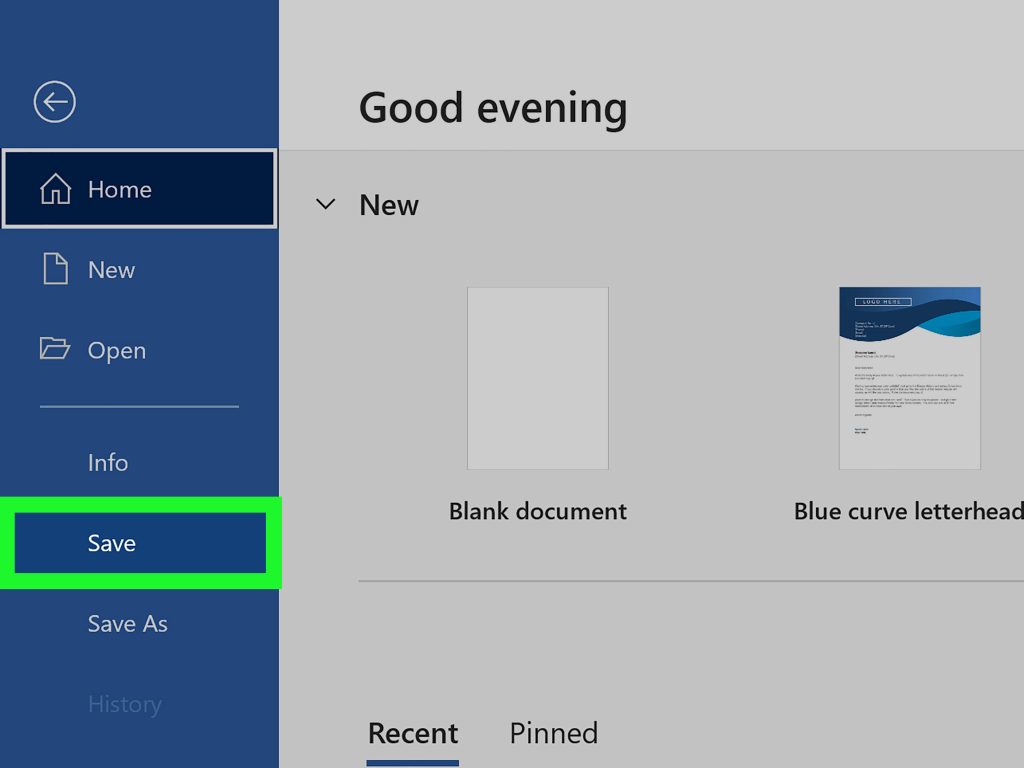
- Click File, then Save As.
- Choose Word Document (.docx) or Word 97-2003 Document (.doc).
- Click Save.
For most everyday documents, this may be all you need. Microsoft Word can often interpret WordPerfect files well enough to preserve the main text and much of the basic formatting. However, you should always review the converted file before sending it to a client, professor, court office, employer, or anyone who owns a red pen.
What to check after converting in Word:
- Page breaks and section breaks
- Margins and line spacing
- Headers and footers
- Footnotes and endnotes
- Tables and columns
- Special symbols
- Bullets, numbering, and outlines
If the document opens with messy formatting, do not panic. Word may have recovered the text correctly even if the layout needs cleanup. Save the file as .docx, then adjust styles, headings, spacing, and page layout manually.
Method 2: Use WordPerfect’s “Save As” Feature
If you still have access to WordPerfect, this is often the cleanest conversion method. The original program usually understands its own formatting better than another application does. In other words, let WordPerfect pack the suitcase before Word tries to unpack it.
Best for:
This method is best for users who already have WordPerfect installed or can access it through an office, school, legal department, or trial version. It is especially useful for documents with complex formatting.
How to do it:
- Open the document in WordPerfect.
- Click File.
- Choose Save As.
- In the file type menu, select a Microsoft Word format, such as MS Word, .doc, or .docx, depending on the available options.
- Choose a destination folder.
- Rename the file if needed.
- Click Save.
- Open the new file in Microsoft Word and review it.
This approach can produce better results because WordPerfect handles the first stage of conversion. It knows how its Reveal Codes, formatting tags, styles, and layout instructions were created. When it exports to a Word format, it attempts to translate those elements into something Microsoft Word can understand.
Still, no conversion is magic. A document with unusual macros, custom templates, old fonts, or highly specific legal formatting may need manual cleanup. The more complicated the original file, the more carefully you should review the converted Word document.
Should you save as .doc or .docx?
Use .docx for most modern needs. It is the standard Word format used by current versions of Microsoft Word and is usually better for compatibility, file size, and long-term editing. Use .doc only if the recipient specifically asks for the older Word 97-2003 format or uses older software.
Method 3: Convert the WordPerfect File with LibreOffice
LibreOffice is a free office suite that can open many document formats, including some WordPerfect files. It is a useful option when you do not have WordPerfect and Microsoft Word is not opening the .wpd file properly.
Best for:
This method is best for budget-friendly conversion, occasional file rescue, and users who prefer desktop software over uploading documents online.
How to do it:
- Download and install LibreOffice from the official LibreOffice website.
- Open LibreOffice Writer.
- Click File, then Open.
- Select your .wpd file.
- Wait for LibreOffice to import the document.
- Review the text and formatting.
- Click File, then Save As.
- Choose Word 2007-365 (.docx) or another Microsoft Word format.
- Confirm that you want to use the Word format if LibreOffice asks.
- Open the exported file in Microsoft Word and check the results.
LibreOffice can be especially handy when you have an older WordPerfect file that Word refuses to open cleanly. It is not perfect, but it gives you another conversion engine to try. Sometimes Word handles a document best. Sometimes WordPerfect does. Sometimes LibreOffice quietly walks in, fixes the situation, and deserves a cookie.
Using LibreOffice for batch conversion
Advanced users can also use LibreOffice from the command line to convert multiple documents. This is useful if you have a folder full of old WordPerfect files. However, batch conversion should be tested on a few sample documents first. A hundred messy conversions are still a hundred messy conversions, only faster.
For large archives, create a test folder, convert copies of a few files, inspect the output, and then decide whether the method is reliable enough for the full batch. Keep originals untouched.
Method 4: Use an Online WPD to DOC or DOCX Converter
Online converters are convenient when you need a quick conversion and do not want to install software. Services such as Zamzar, CloudConvert, and similar document conversion tools often support WPD to DOC or WPD to DOCX conversion.
Best for:
This method is best for non-sensitive documents, quick one-time conversions, and users who do not have Microsoft Word, WordPerfect, or LibreOffice installed.
How to do it:
- Choose a reputable online document converter.
- Upload your .wpd file.
- Select DOC or DOCX as the output format.
- Start the conversion.
- Download the converted Word file.
- Open it in Microsoft Word and review the formatting.
Online converters can be wonderfully simple. Upload, convert, download, done. That said, do not upload confidential files unless you have reviewed the service’s privacy policy and are comfortable with how your document will be handled. Legal documents, medical records, financial statements, private contracts, unpublished manuscripts, and personal identification documents should usually be converted offline instead.
DOC or DOCX for online conversion?
Choose DOCX unless you have a specific reason to use DOC. DOCX is the modern Microsoft Word format and is widely accepted. DOC is older but may still be requested by legacy systems.
Which Conversion Method Should You Choose?
The best method depends on what you have available and how important the formatting is.
| Situation | Best Method | Why It Works |
|---|---|---|
| You have Microsoft Word | Open directly in Word | Fastest and easiest for simple files |
| You have WordPerfect | Save As Word format | Often best for preserving original formatting |
| You want free desktop software | Use LibreOffice | Good no-cost option for opening and exporting files |
| You need a quick one-time conversion | Use an online converter | Convenient, but not ideal for private documents |
| You have many old files | WordPerfect or LibreOffice batch workflow | Better for repeated conversions and testing |
Common Problems After Converting WordPerfect to Word
1. Margins change
WordPerfect and Word may interpret page layout differently. After conversion, check the page setup, margins, and paper size. A document created for letter-size paper may look strange if Word opens it using another setting.
2. Fonts are missing
If the original document used old or custom fonts, Word may substitute available fonts. This can change line breaks and page count. Use common fonts such as Times New Roman, Arial, Calibri, or Garamond when preparing a final Word version.
3. Tables shift
Tables can be sensitive during conversion. If columns look squeezed or stretched, select the table in Word and adjust AutoFit, column width, and paragraph spacing.
4. Bullets and numbering look odd
Automatic numbering systems do not always translate perfectly. For contracts, outlines, and legal documents, review every numbered paragraph. A single wrong number can turn a neat document into a scavenger hunt.
5. Headers, footers, and footnotes need review
These areas are easy to miss because they are not always visible while editing the main document. Check them before sending the file.
Tips for a Cleaner Conversion
For the best results, simplify the original document before converting if you can. Remove unnecessary formatting, accept or reject tracked changes, delete unused sections, and save a clean copy. If the document is important, convert it using two different methods and compare the results. For example, try opening the file in Word and also exporting it from WordPerfect or LibreOffice. Keep the version with better formatting.
If you only need the text, consider saving or exporting as RTF first. Rich Text Format can preserve basic formatting while reducing some compatibility issues. It is not always the prettiest path, but it can be a reliable bridge between older and newer word processors.
After conversion, use Word’s built-in tools to polish the document. Apply heading styles, fix spacing, update page numbers, inspect tables, and run spell check. If the file will be published, printed, submitted to a court, or sent to a client, export a PDF after final editing so the layout stays stable.
Security Tips When Converting Old Documents
Old documents can contain macros, embedded objects, metadata, or hidden information. Before sharing the converted file, use Microsoft Word’s Inspect Document feature to check for hidden comments, personal information, invisible content, and other metadata. This is especially important for business and legal files.
Be cautious with unknown .wpd files received by email. Treat them like any other document attachment: scan them, open them only from trusted sources, and avoid enabling macros or active content unless you know exactly what they do. A file format may be old, but bad security habits never go out of style.
Experience Notes: Real-World Lessons from Converting WordPerfect Files
In real-world conversions, the biggest surprise is usually not whether the text comes through. It often does. The real adventure begins with formatting. A three-page letter may convert beautifully, while a forty-page legal document with pleading lines, footnotes, tables, and custom numbering may arrive in Word looking as if it took a shortcut through a washing machine. This does not mean the conversion failed completely. It means the document needs review and cleanup.
One practical lesson is to start with the simplest method, but do not marry it. If Microsoft Word opens the file cleanly, wonderful. Save it as DOCX and move on with your day. If Word mangles the layout, try WordPerfect’s Save As option if available. If that is not possible, try LibreOffice. If the document is not sensitive, test an online converter as a backup. Different tools use different conversion filters, so a file that looks strange in one program may look surprisingly good in another.
Another lesson is that old fonts matter more than people expect. Many WordPerfect documents were created years ago on machines with fonts that are no longer installed. When Word replaces a missing font, the document may reflow. Lines break differently, page numbers change, and carefully placed signatures may wander off like they have somewhere better to be. If page accuracy matters, identify the original fonts or choose replacement fonts deliberately instead of accepting random substitutions.
Tables deserve special attention. A simple table usually survives conversion. A complex table with merged cells, custom borders, tabs inside cells, or unusual spacing may need repair. After conversion, click inside each table and check whether columns line up, text wraps correctly, and borders appear as expected. For forms, check every blank line and checkbox. Conversion tools are helpful, but they are not mind readers.
For legal and business documents, numbering is the danger zone. WordPerfect and Word handle outlines and automatic numbering differently. After conversion, review every heading, subheading, clause number, exhibit label, and cross-reference. Do not assume that because page one looks good, page eighteen is behaving. Page eighteen may be wearing a fake mustache and pretending to be page seventeen.
Large archives require a workflow, not just a converter. If you have hundreds of .wpd files, do not batch-convert everything immediately. First, sort the files by importance. Then test a handful from different years and document types. Compare output from Word, WordPerfect, LibreOffice, and an online tool if appropriate. Create a naming system such as original-file-name-converted.docx. Keep the original folder untouched. Only after you are happy with the test results should you convert in bulk.
Finally, the best conversion habit is to proof before trusting. Open the converted document in Microsoft Word, save it, close it, reopen it, and check it again. This extra step catches problems that appear only after Word fully saves the new file. For important documents, also create a PDF copy after final edits. The DOCX file remains editable, while the PDF gives you a stable version for sharing or printing.
Conclusion
Converting a WordPerfect document to an MS Word document is usually straightforward when you choose the right method. Start by opening the .wpd file directly in Microsoft Word. If that does not preserve the formatting well enough, use WordPerfect’s Save As feature, LibreOffice, or a reputable online converter. For simple documents, the process may take less than a minute. For complex files, the conversion is only step one; careful review is what turns a converted file into a professional Word document.
The golden rule is simple: protect the original, test the conversion, review the formatting, and save the final version as DOCX unless someone specifically asks for DOC. Do that, and your WordPerfect file can join the modern Word world without drama, confusion, or a support-ticket séance.
